
Tutorial
Get started with Tinkerfont
A quick walkthrough of the extension — from installing to inspecting fonts, swapping candidates on a live page, and saving your setup.
Step 1
Install the extension or add-on
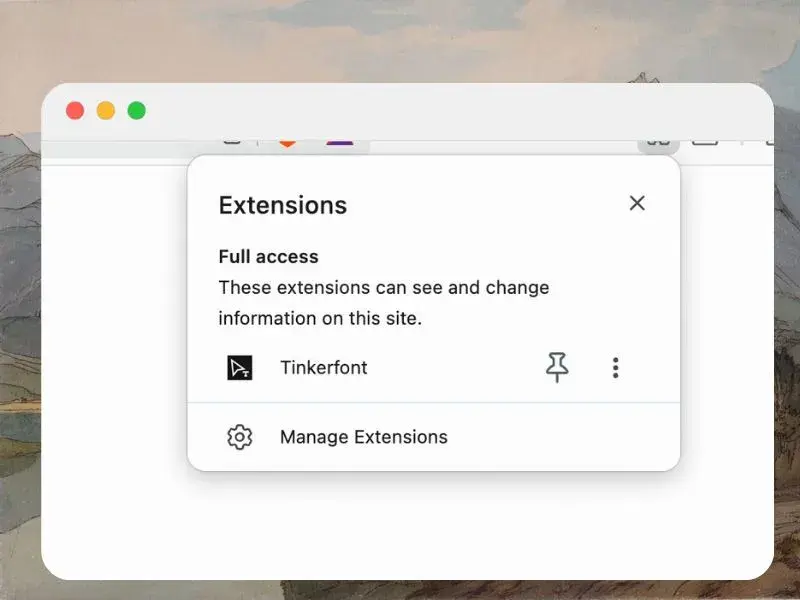
Add Tinkerfont from the Chrome Web Store or Firefox Add-ons, then pin it from your browser's extensions menu so the toolbar icon is easy to reach.
- Click Add to Chrome or Add to Firefox and confirm the install.
- Open any normal website — not internal browser pages (chrome://, about:) or extension store sites.
- Refresh the tab once after installing so the latest scripts load.
Step 2
Inspect fonts with right-click
Move your mouse over the text you want to inspect, then right-click and open Tinkerfont in the context menu. The submenu updates live as you hover — family, weight, size, color, contrast, and more.
- Hover the text you care about before right-clicking.
- Open Tinkerfont → read the values in the submenu.
- Click any row to copy it. Font file (experimental) copies the full https URL when found; the menu shows the filename only.
- The first copy may ask for clipboard permission once.
Step 3
Open the replacement panel
Click the Tinkerfont toolbar icon on the page you want to preview. The panel slides in from the side so you can search fonts without leaving the site.
- Navigate to the page you want to test — staging, production, or local.
- Click the Tinkerfont icon in Chrome’s toolbar.
- Use the theme toggle in the panel header if you prefer light or dark UI.
Step 4
Scan fonts on the page
Under Fonts on this page, Tinkerfont scans the live DOM and lists families in use with element counts.
- Tap a detected font to set it as the target.
- Or type a family name in Target font — use * to replace every font on the page.
- Hit Rescan to clear applied rules and refresh the font list.
Step 5
Replace with a new font
Choose Bunny Fonts to search 1,900+ open fonts, or switch to Custom to upload your own files.
- Search the Bunny catalog and pick a candidate.
- Or upload .woff2, .woff, .ttf, or .otf under Custom, name it, and save.
- Click Apply replacement to preview the swap on the live page.
- Scroll the page and check headings, body copy, tables, and UI chrome.
Step 6
Scope a swap to one area
Optional, but useful when you only want to change the nav, a table, or a hero — not the entire site.
- Click Pick area, then click elements on the page to build a selector.
- Press Esc to cancel picking. Use Clear all areas to remove scopes.
- Areas are saved per hostname and persist across refreshes.
Step 7
Manage rules and move settings
Active rules show what’s applied on the current site. Remove individual rules from the list, or export your full setup to move it to another browser.
- Review Active rules to see source → replacement pairs for this hostname.
- Click Remove on a rule to delete it.
- Use Export in the panel header to download a JSON backup.
- Use Import on another machine to restore rules and scopes. Re-upload custom font files after import.
Tips
A few things to know
www.example.comandexample.comare stored as separate hostnames.- Font file (experimental) reads
@font-facerules to find webfont URLs. System fonts won't show a file URL, and in some cases a URL may not appear — for example cross-origin stylesheets, dynamically injected fonts, or other site restrictions. - Tinkerfont does not run on restricted pages like
chrome://URLs or the Chrome Web Store. - Need more detail on data and permissions? Read the privacy policy.
The right-click font inspector is inspired by Fontanello. Thank you to its creators, Lars Wästfelt & Fred Bergman, for the original idea.